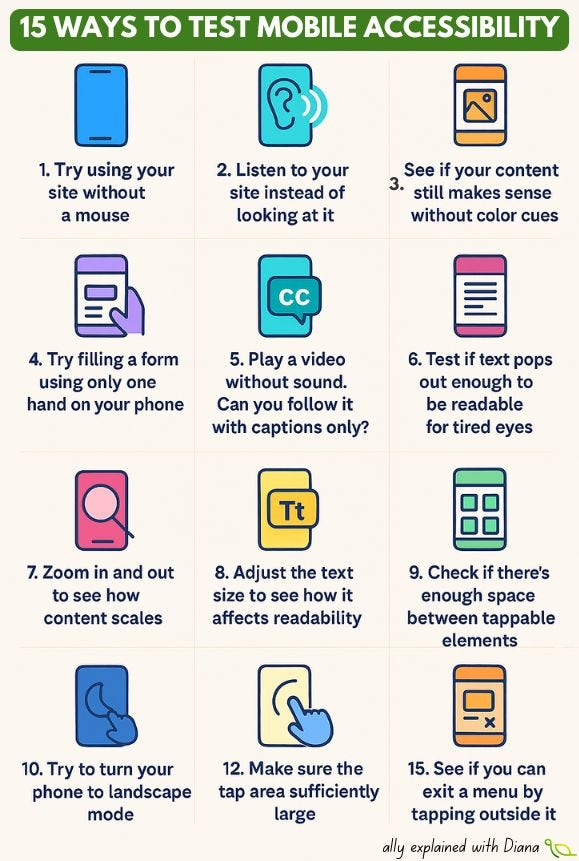
15 activities to test mobile accessibility

In the last 15 years, the internet has gone mobile. Every major platform — from news to shopping to social media — has invested in sleek mobile versions because that’s where people spend their time.
📊 In fact, more than 60% of web traffic now comes from mobile devices
We optimized for speed, performance, and design. But there’s one area where many mobile experiences still fall short: accessibility.
And yet, mobile accessibility isn’t a niche concern. It affects everyone — whether you’re navigating with one hand while holding a coffee, trying to read in bright sunlight, or relying on a screen reader every single day.
The good news is that you don’t need special tools to understand these challenges: your phone is already the perfect testing lab.
That’s why I put together 15 quick activities to test mobile accessibility. Each one reveals how real people experience barriers and how small design choices can make a huge difference.
Activities to test mobile accessibility
Turn on VoiceOver (iOS) or TalkBack (Android)
Navigate your favorite app. Every unlabeled button or image will suddenly become invisible.
Study: Screen Reader User Survey 9 – WebAIM shows that over 70% of users rely on mobile screen readers daily.
Increase text size to maximum in settings
Does your layout adjust gracefully? Do words overlap and buttons disappear?
WCAG criterion: 1.4.4 Resize text
Test color contrast outdoors
Step into bright sunlight. Can you still read the buttons?
Fact: poor contrast is one of the most common accessibility issues
Switch your phone to grayscale
Do instructions still make sense without color cues (“Click the green button” won’t work).
Study by WHO: around 300 million people worldwide have some form of color vision deficiency.
Try captions on videos
Turn sound off. Are captions accurate, synced, and complete?
Fact: 80% of caption users are not deaf or hard of hearing
Enable dark mode
Is content still clear, or do logos/icons disappear into the background?
Try high-contrast mode (Android) or Smart Invert (iOS)
Does the app break visually?
Test with one hand only
Can you still reach all main actions (especially on large phones)?
Rotate the phone (portrait ↔ landscape)
Does the app adapt, or do important features vanish?
Check hit targets
Can you tap small buttons without misclicking?
Lock the phone in portrait mode
Is all content still accessible without horizontal scroll?Slow down your internet connection
Try airplane mode, then re-enable with poor data. Does the app give helpful feedback?Turn off animations (reduce motion in settings)
Does the app remain functional without fancy effects?
Fact: motion can trigger vertigo or migraines for some usersTry only keyboard navigation (with external or on-screen keyboard)
Can you move logically between fields, links, and menus?Use your phone in low light with tired eyes
Does text spacing and font choice remain comfortable?
These aren’t “extra tests” — they mirror how people actually use their phones. Sometimes with one hand, sometimes in noisy or bright environments, sometimes with accessibility settings turned on permanently.
Accessibility on mobile isn’t about edge cases, it’s about real-world design for real-world humans.